


Importing & Sharing
How to import recipes from Instagram
Save a recipe from an Instagram post or Reel by sharing it to MyMealVault or pasting the post URL.
Instagram posts and Reels work with Import from social on iOS and Android and Paste Recipe Link on web. MyMealVault looks for a full recipe in the post or a recipe link attached to it.
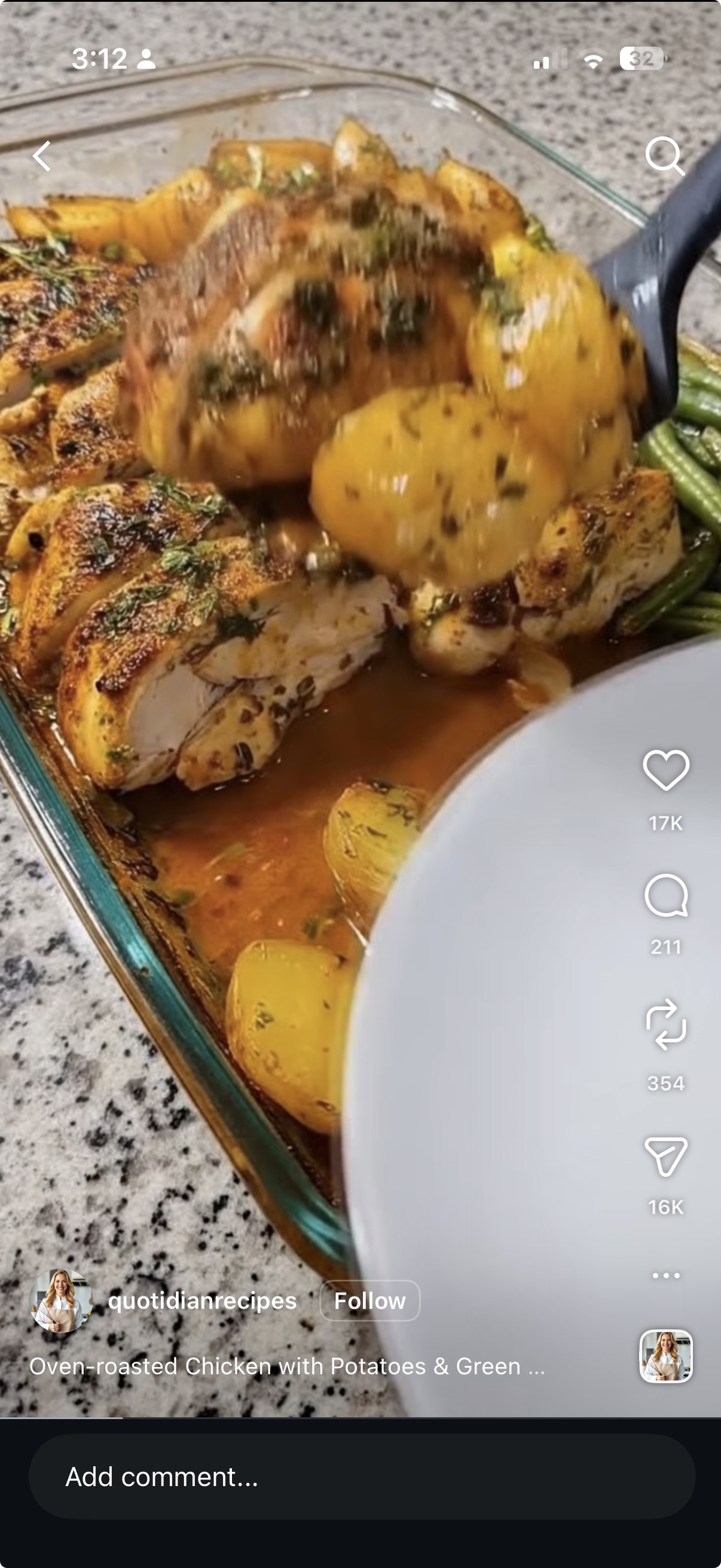
Tap the share icon
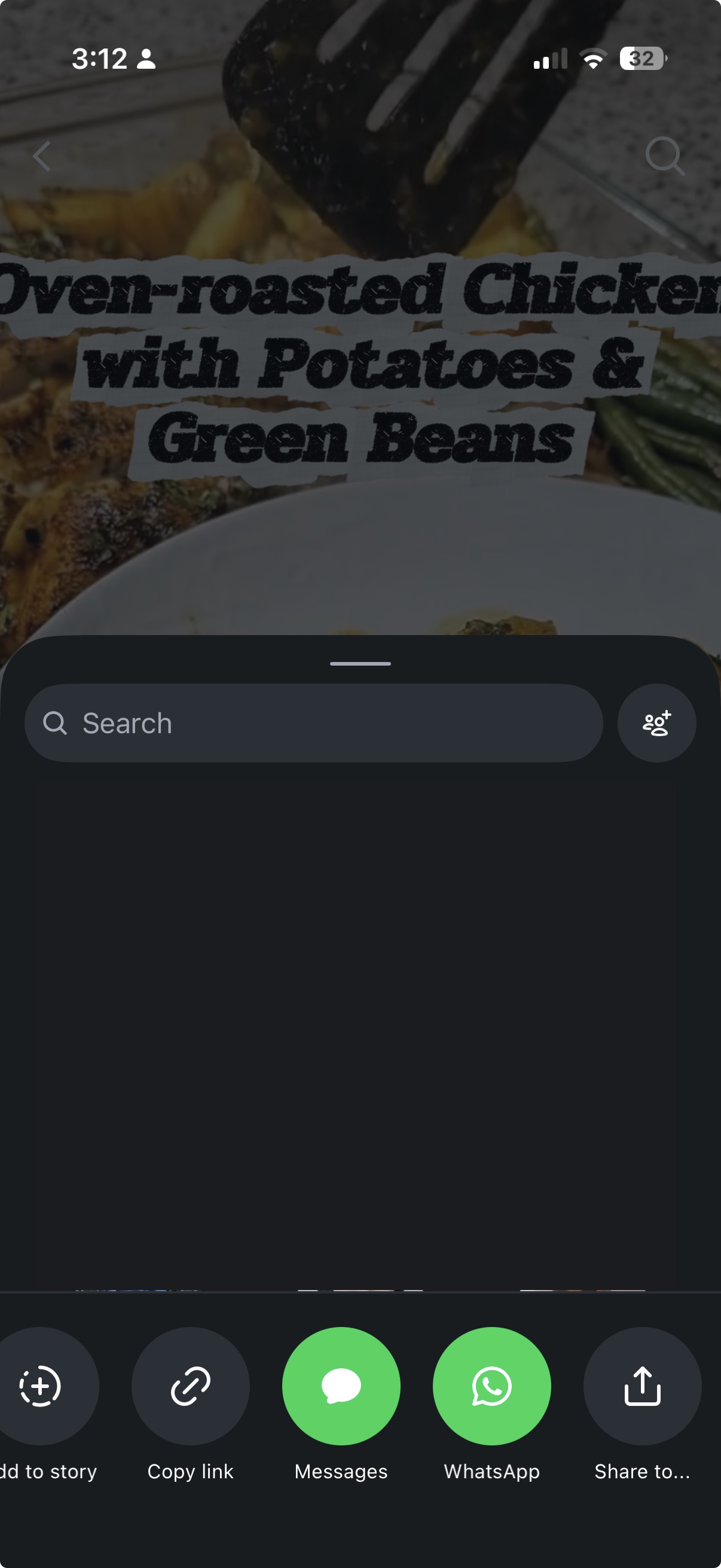
In Instagram, open the recipe post or Reel and tap the share icon.Tap MyMealVault
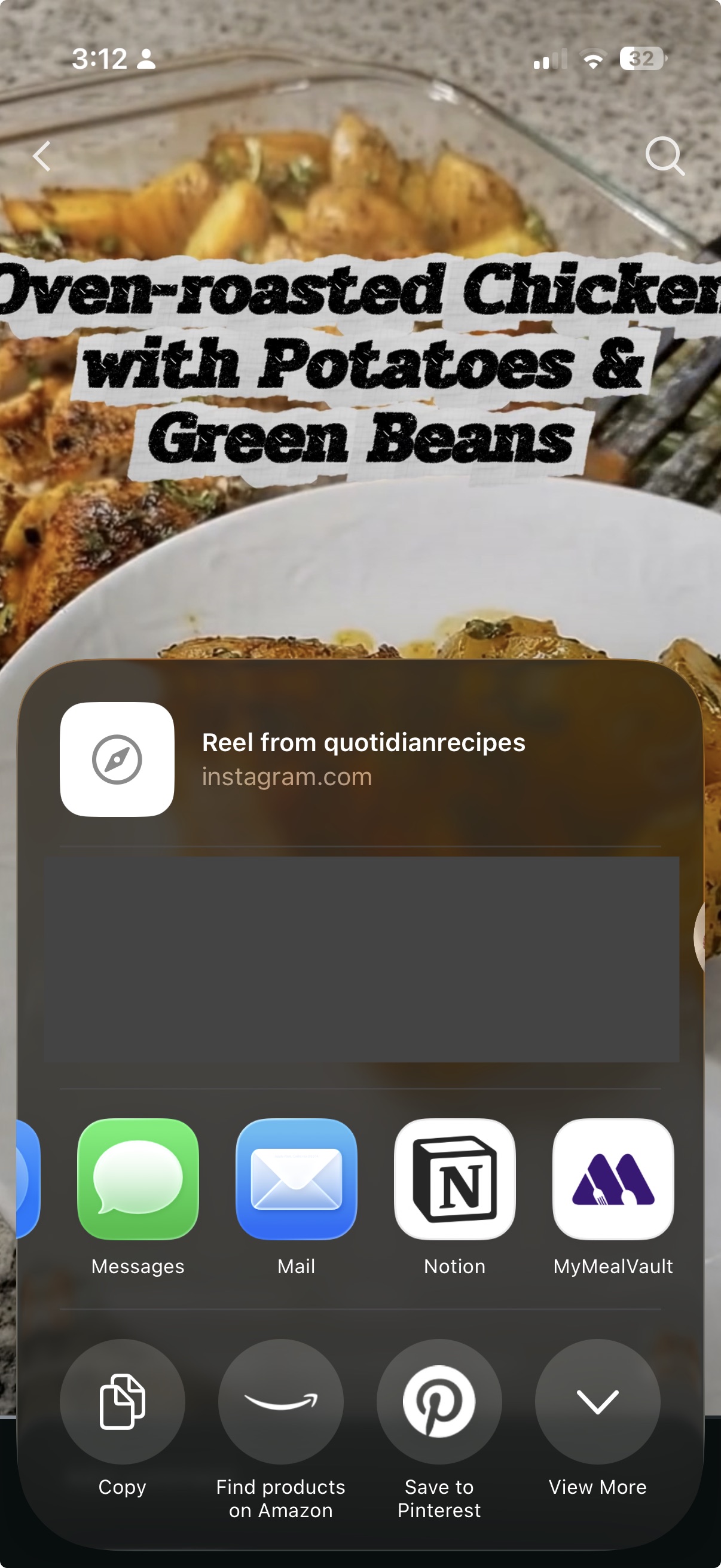
Choose MyMealVault from the share sheet. If you do not see it, scroll through the app options and add it to your favorites.Open MyMealVault
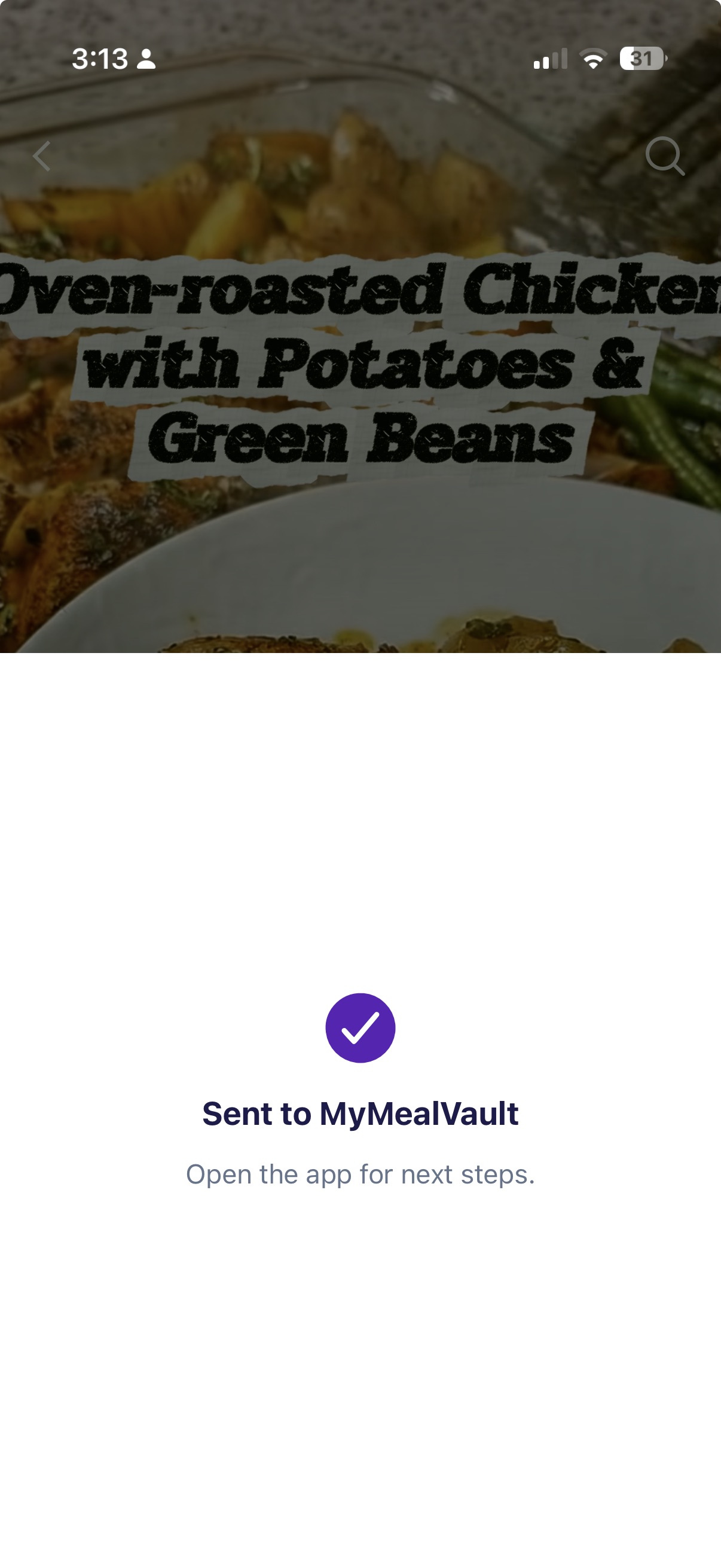
MyMealVault opens the Add Recipe flow and starts looking for a recipe in this post.Add to your vault
When the import is ready, review the recipe and save it to your vault.
Import from Instagram on iPhone
Send the post or Reel link to MyMealVault from Instagram's share options.
Related articles
Still need help?
If you could not find what you were looking for, reach out and we will get back to you.
Contact support